IPTV Freezing and Buffering: The Fixes That Work
·6 min read
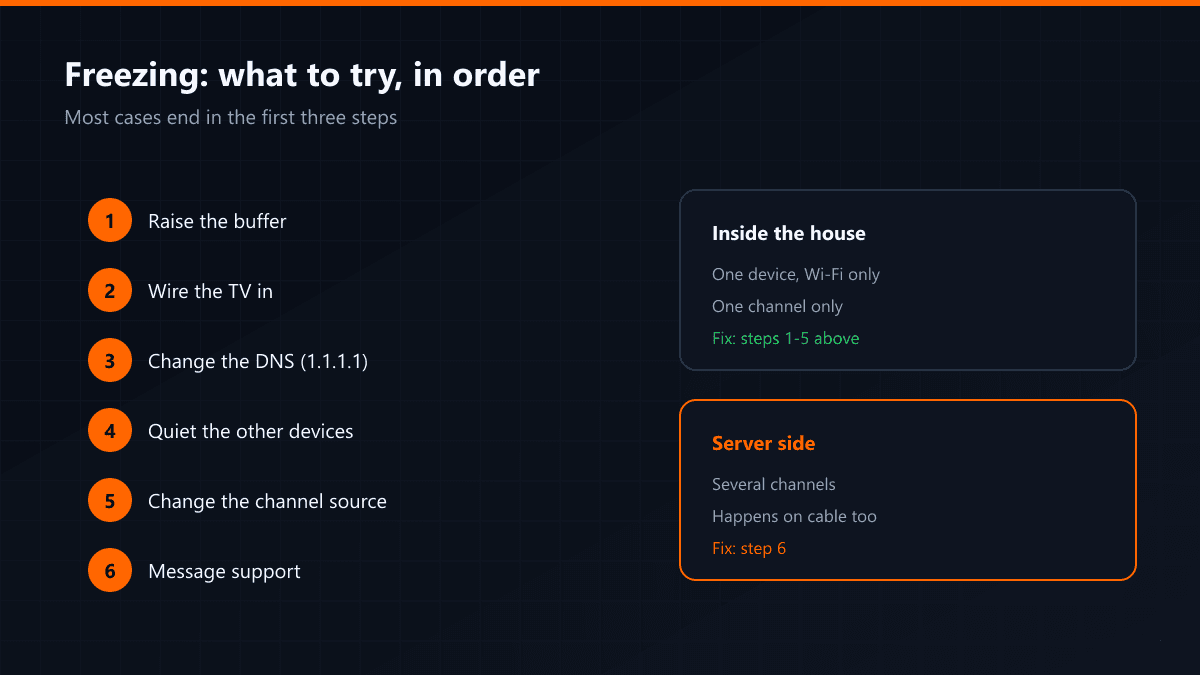
Most IPTV freezing starts inside the house rather than on the server. Work through the seven steps below in order; the majority of cases are solved in the first three.
What to try, in order
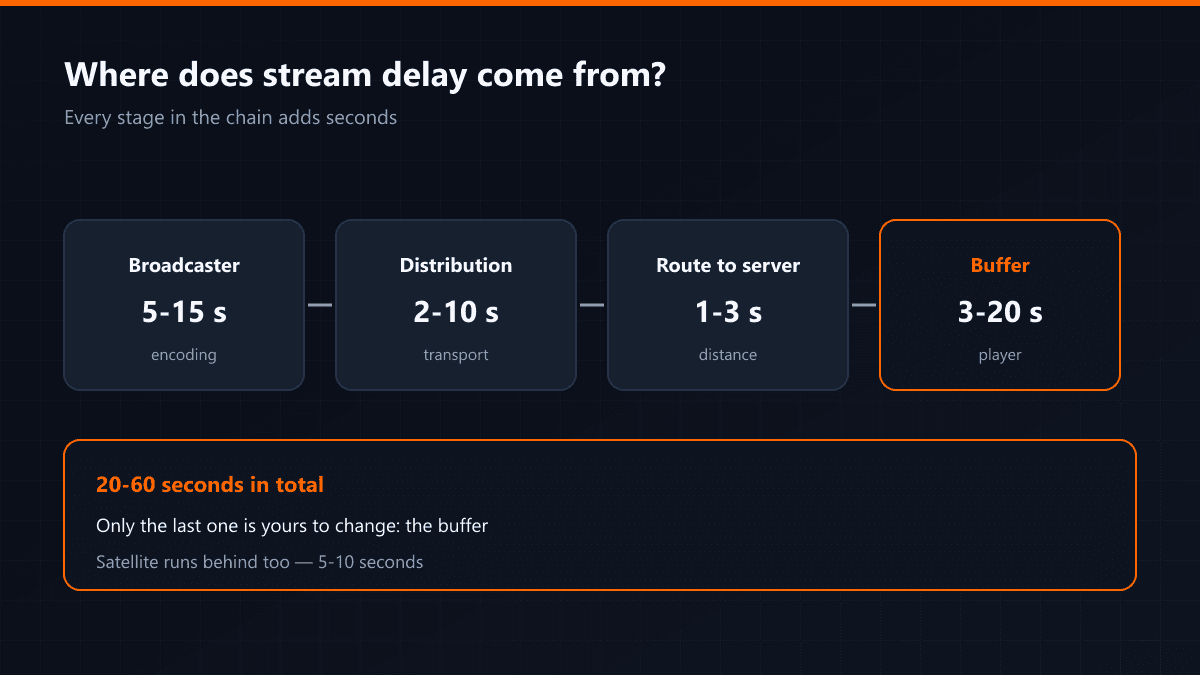
- 01Raise the bufferEvery player has a value called buffer or cache. Raising it makes the stream gather more data before it starts, which hides short interruptions entirely.
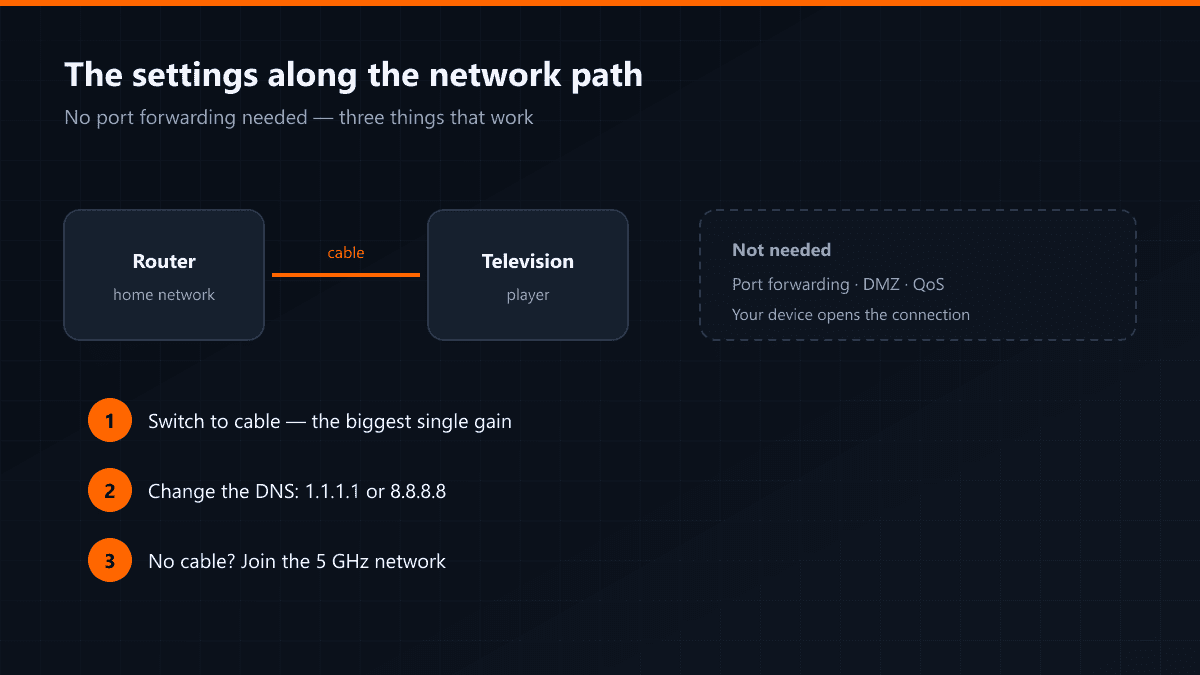
- 02Switch to cableConnect the television to the router with a cable. On its own this is the single biggest improvement, especially on Smart TVs.
- 03Change the DNSIn the device's network settings, set the DNS to 1.1.1.1 or 8.8.8.8. Some providers' own DNS resolves stream servers slowly.
- 04Reduce what else is runningA computer downloading or a phone backing up in the same house means you are sharing the bandwidth.
- 05Change the channel sourceTry a backup entry for the same channel if there is one. Freezing on a single channel is specific to that source, not general.
- 06Change the appTry another player with the same details. If the problem only shows in one app, the stream is not the issue.
- 07Write to supportIf you got this far the cause may be on the server side. Tell us which channel, what time and which device — those three facts speed up the fix.
How to tell it is the server
If it happens across several channels, on several devices and on a wired connection too, the server side is indicated. On one device and only over Wi-Fi, it is inside the house.
Telling the types of freezing apart
Not every freeze is the same thing, and the right fix depends on which one you have. The table below maps the symptom to the likely cause.
| Symptom | Likely cause | Try first |
|---|---|---|
| Pauses a few seconds, then continues | Buffer too small | Raise the buffer |
| Picture breaks into blocks | Bandwidth dropping | Switch to cable |
| Channel never opens | DNS or source | Change the DNS |
| Only freezes in the evening | Congestion | Try the backup source |
| Only one channel freezes | Specific to that source | Report it to support |
| The whole app freezes | Device memory | Clear the app cache |
How high should the buffer be?
The default is usually kept low because it makes channel switching feel quick. On a fluctuating connection that default works against you: raising the buffer delays the channel opening by a second or two but keeps the picture steady throughout. TiviMate keeps it under Settings > Playback, Smarters inside its own settings. Raise it in steps — the highest value is not always the best one.
If you have to use Wi-Fi
- Join the 5 GHz network: 2.4 GHz travels further but is slower and more crowded.
- Cut the number of walls between router and television; each one costs noticeably.
- Change the router's channel: in a block of flats dozens of networks can share one.
- A mesh node or powerline adapter is the closest thing to cable for a distant room.
Keep a record
Three facts make support fast: which channel, what time, which device. "It freezes" says nothing on its own; "beIN Sports 1 at nine in the evening on a Samsung TV" usually finds the cause on the first attempt.