How to Set Up IPTV on a Smart TV: Samsung, LG and Android TV
·5 min read
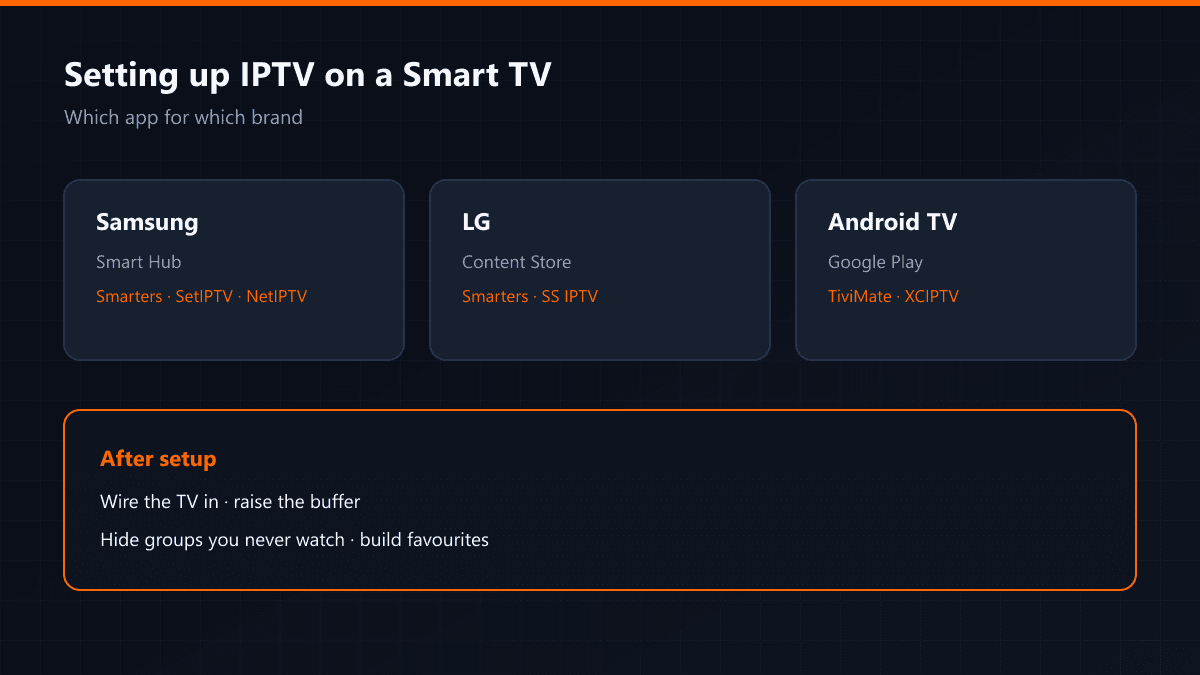
Setting up IPTV on a Smart TV depends on the brand: Samsung and LG use their own stores, while Android TV runs through Google Play. All three routes are below — read the section for the set you own.
Samsung televisions
- 01Open Smart HubPress Home on the remote and go into the apps section.
- 02Install a playerSearch for and install IPTV Smarters Pro, SetIPTV or NetIPTV. All three do the same job; the Smarters interface is the most familiar.
- 03Enter your detailsChoose the Xtream Codes login and type the username, password and server address.
LG televisions
The same apps install through the LG Content Store. If IPTV Smarters is not listed in your region, SS IPTV is on practically every LG model and works with an M3U link.
Android TV and TV boxes
Google Play is open on Android-based devices, so the choice is wide: TiviMate, IPTV Smarters, XCIPTV and Televizo. For remote-control use, TiviMate is the most comfortable of them.
Once setup is done
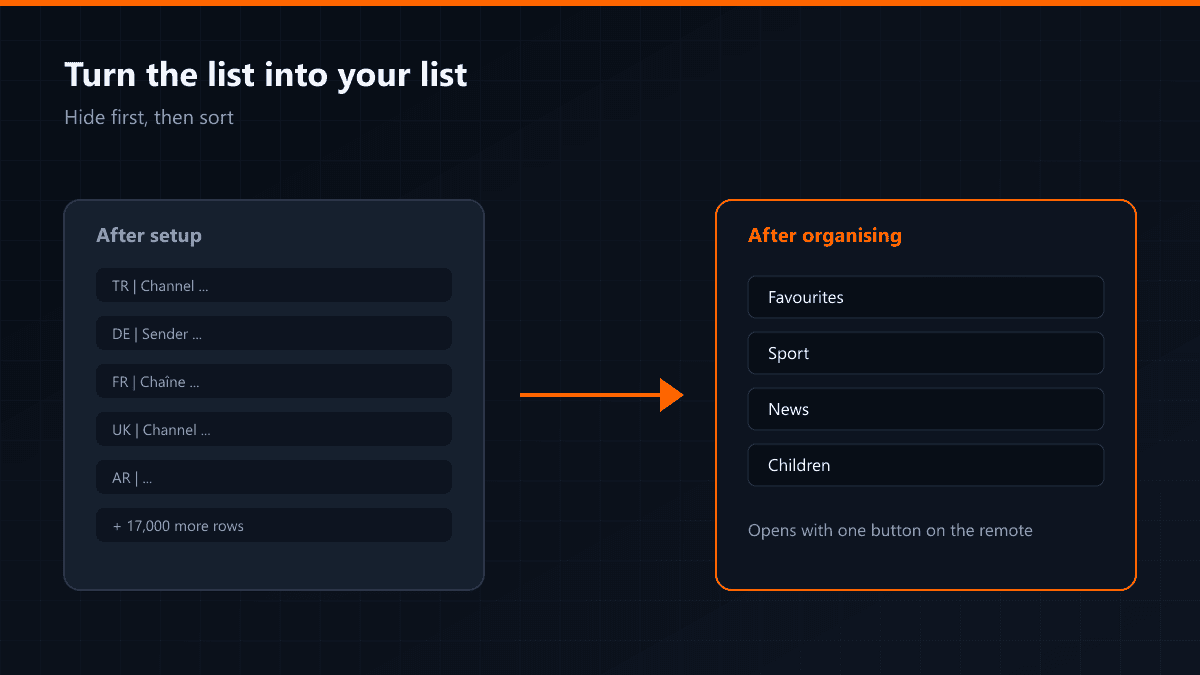
- Trim the channel groups: hiding countries you never watch makes the list noticeably faster.
- Put the channels you actually watch into favourites; navigation time with a remote drops sharply.
- Connect the television by cable. On its own this is the single biggest improvement.
When the app is missing from the store
This is the most common obstacle in a Smart TV setup and the cause is usually the region setting. Store contents change with the registered region, and some apps are simply not listed in some countries.
- Samsung: signing out of Smart Hub and back in with a different region changes what is listed.
- LG: where IPTV Smarters is missing, SS IPTV is on nearly every model and works with M3U.
- On both brands a firmware update refreshes the store catalogue; try that first.
Older televisions
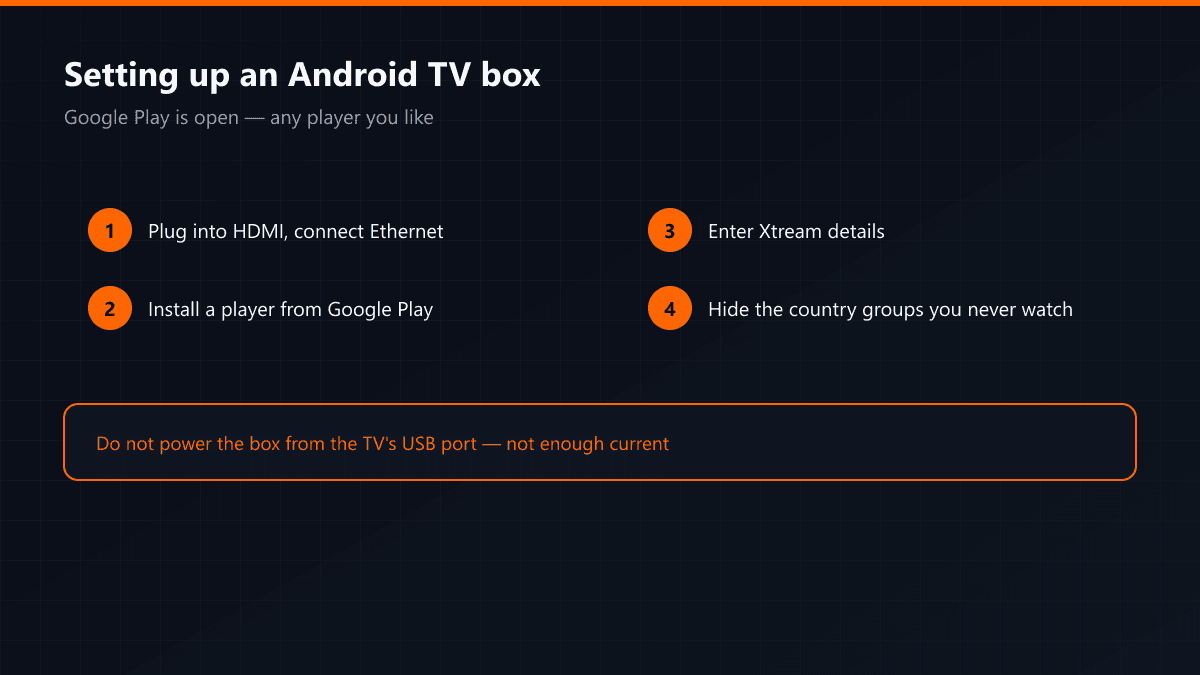
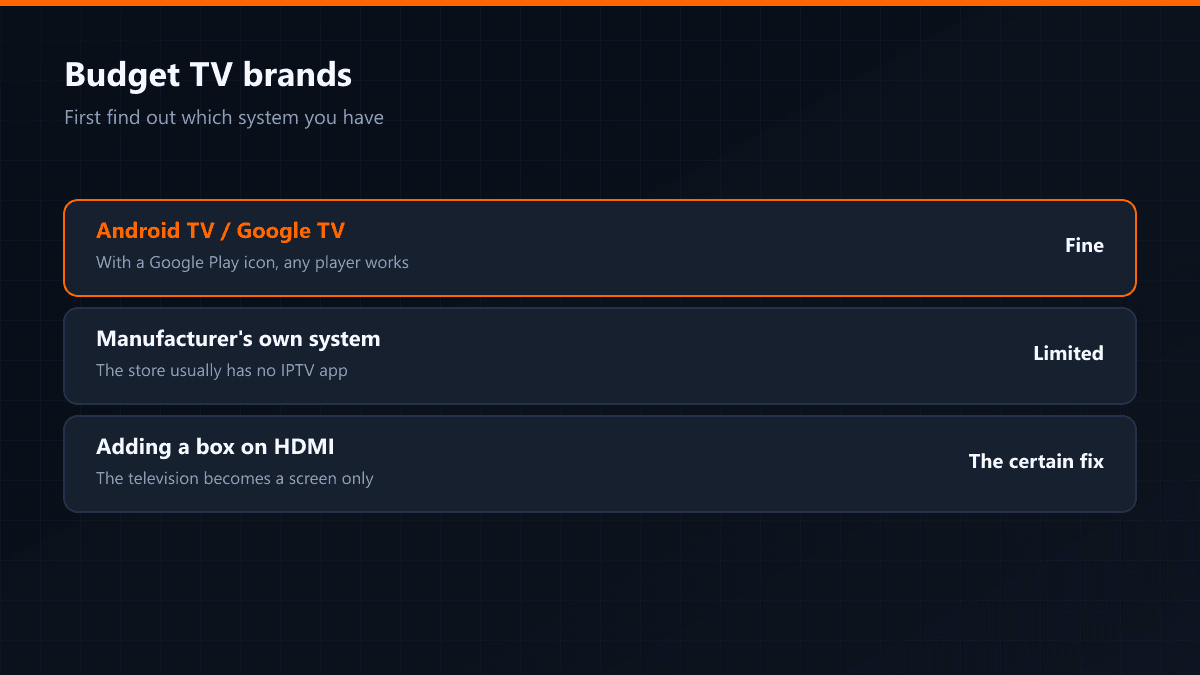
On some models from before 2016 the app store is either heavily restricted or absent. You do not need a new television: a 30-40 dollar Android TV box or a Fire TV Stick turns the set into a screen and the setup happens on the box instead. It is usually both the cheapest and the steadiest answer.
Performance settings after setup
| Setting | Where | Effect |
|---|---|---|
| Wired connection | TV network settings | The single biggest difference |
| Buffer length | App settings | Hides short interruptions |
| Hide channel groups | Playlist inside the app | Speeds up the list |
| Hardware acceleration | App > Player | Faster start-up on some models |
Watching on two televisions
Running one account on two televisions at the same time needs a two-connection plan. On a single-connection subscription the first set drops when the second opens — that is the limit of the plan, not a fault.