Setup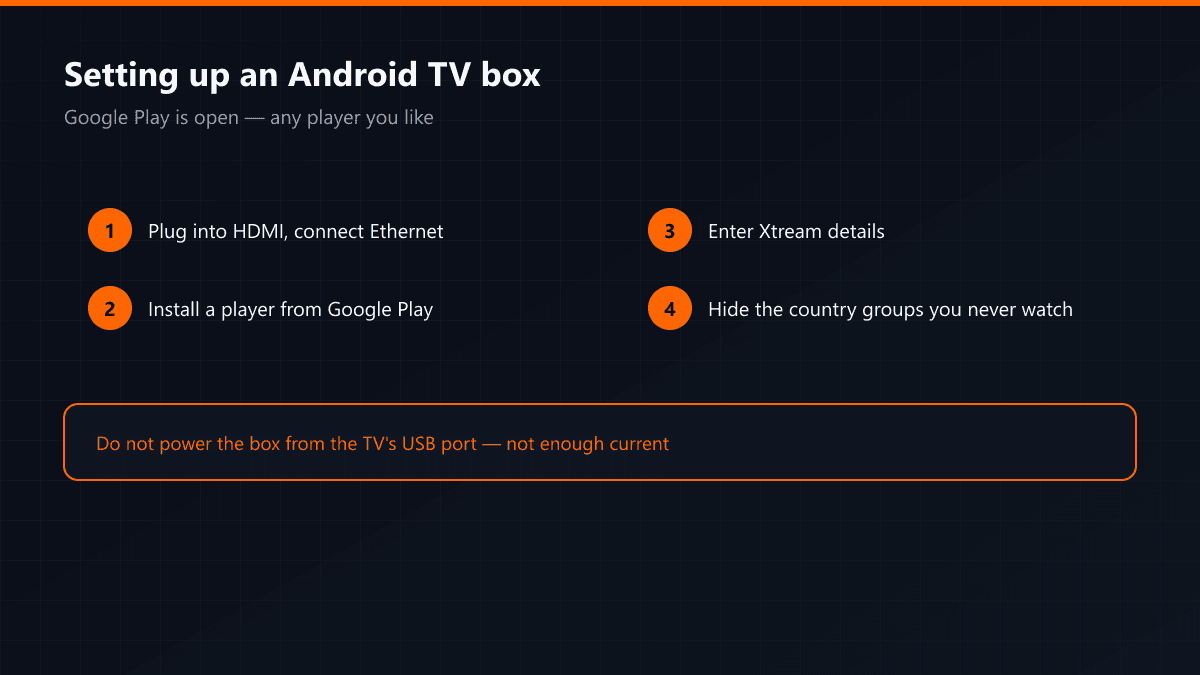
Setting Up IPTV on an Android TV Box
·5 min read
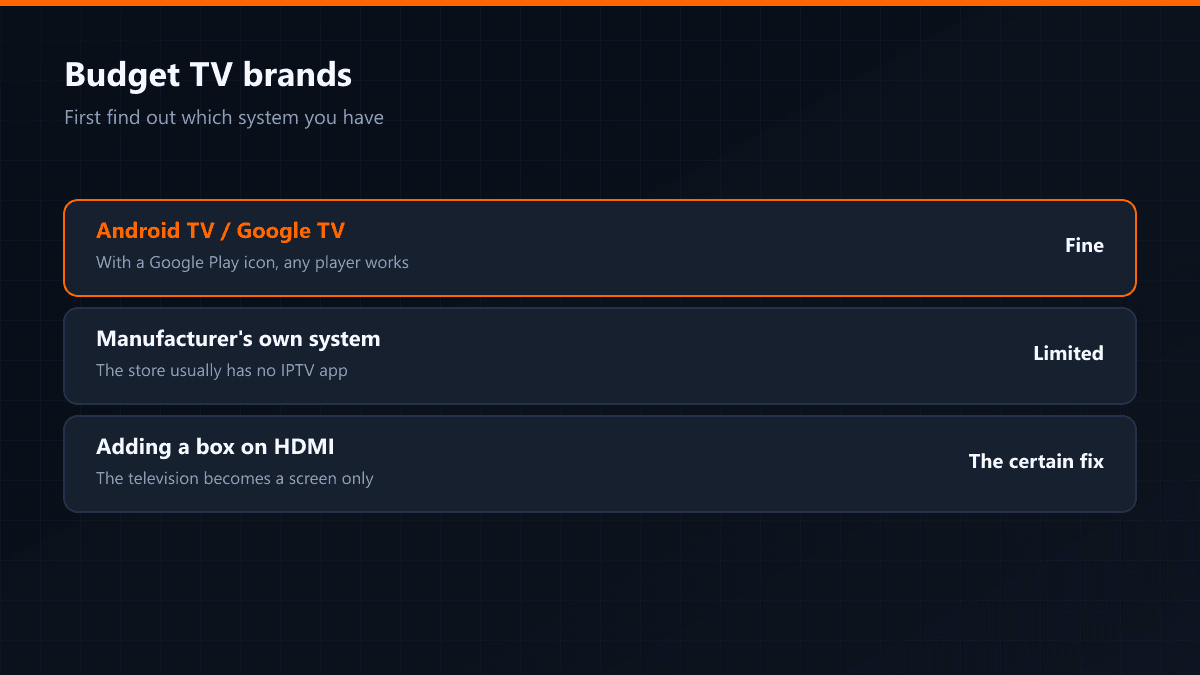
An Android TV box is the most flexible device for IPTV: Google Play is open, so you install whichever player you prefer, and the brand or age of the television never enters the conversation. The set becomes a screen and nothing more.
Setup steps
- 01Plug it into HDMI and get it on the networkUse Ethernet if you can. Most boxes have a port, and on its own that is the biggest gain available.
- 02Install a player from Google PlayTiviMate is the most comfortable with a remote. The alternatives are IPTV Smarters, XCIPTV and OTT Navigator.
- 03Enter the Xtream detailsServer address, username and password. If the box's keyboard is painful, type it from your phone through the Google TV app.
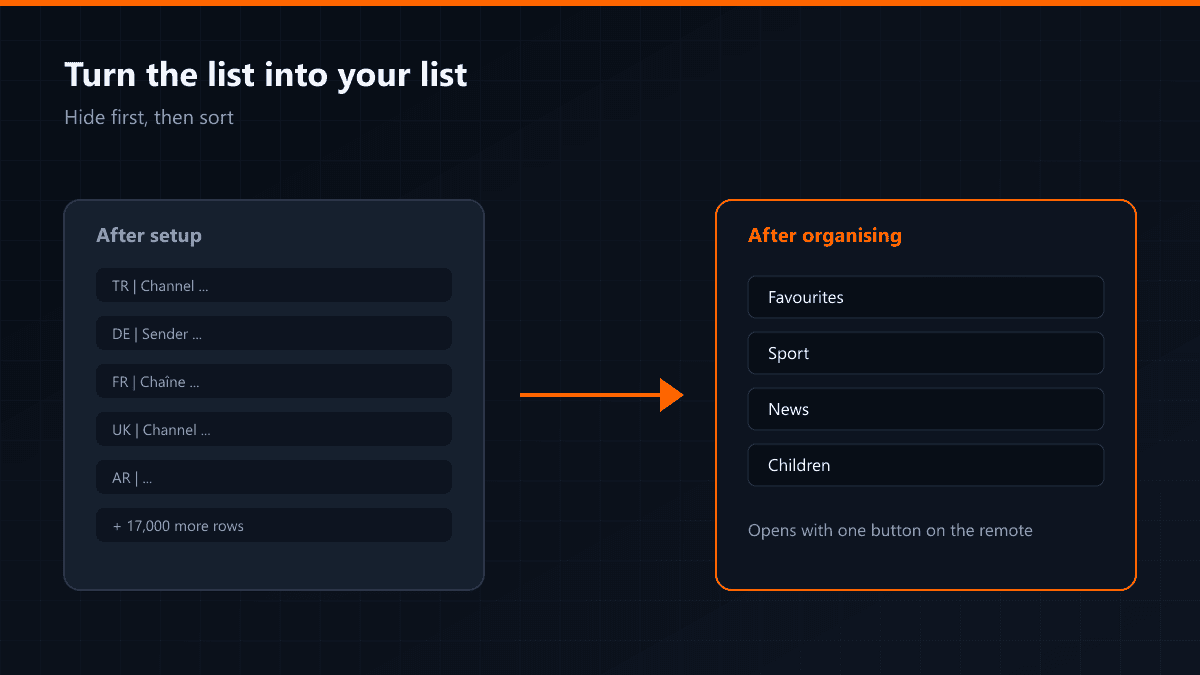
- 04Trim the groupsHide the countries you never watch on the first run. On weaker boxes this visibly shortens how long the list takes to open.
Three settings that speed the box up
- Remove apps you never open; storage on TV boxes is tight and a full disk slows everything down.
- Under Settings > Display, pin the output to 1080p rather than 4K — on weaker boxes the interface becomes noticeably smoother.
- Clear the player's cache once a month; the cache swells as the channel list grows.
Which Android version?
Android TV 9 and above runs every current player. On older versions Google Play hides some apps, and then you need to sideload through Downloader. When buying, check that the box is Android TV certified — uncertified boxes open the manufacturer's own store instead of Google Play.
Do not power the box from the television's USB port. Most do not supply enough current, and that causes random restarts mid-stream.