How to Organise an IPTV Channel List
·5 min read
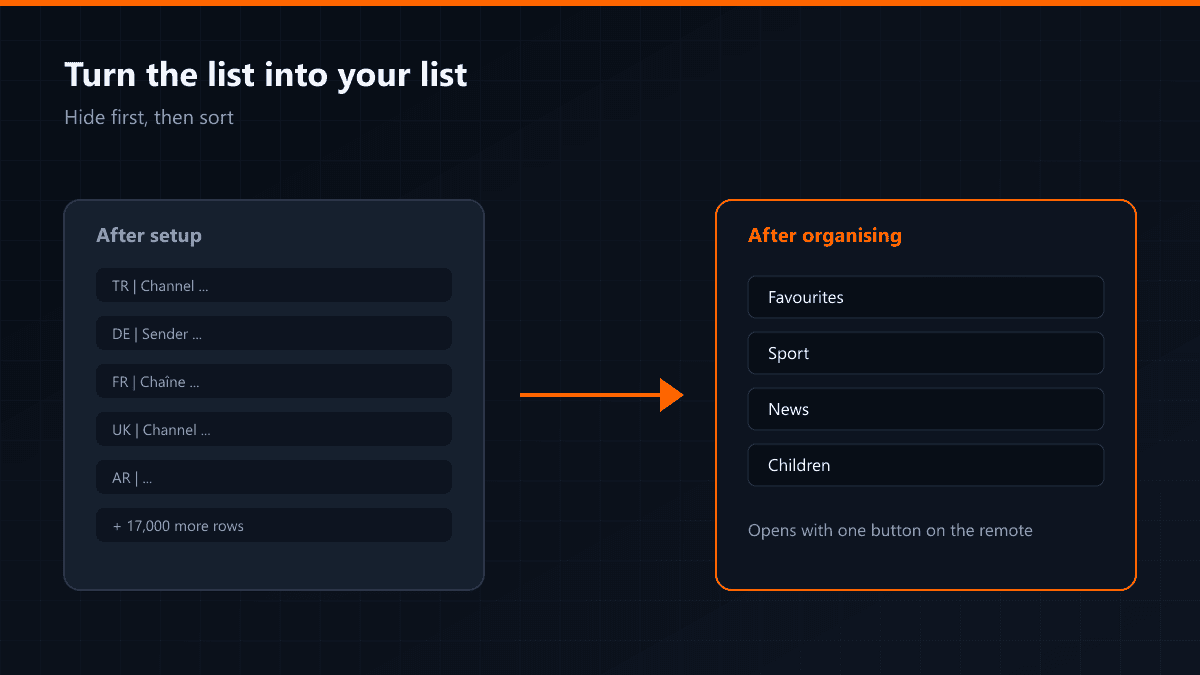
Setup finishes and you are handed a list of several thousand channels that no remote control can navigate. The good news: the list is organised in the app rather than on the server, so you can cut it down as far as you like and nothing is lost.
Order matters: hide first, then sort
- 01Hide the countries you never watchThe group list holds dozens of countries. Leaving only the ones you watch does more than shorten the list — searching and channel opening get noticeably faster.
- 02Build a favourites listIn most homes the number of channels watched daily does not pass ten. Put those in favourites and you get a list that opens with one button.
- 03Reorder to suit yourselfTiviMate lets you drag channels into place. Moving your three most-watched to the top is the single change that cuts navigation time most.
- 04Get into the habit of searchingRather than scrolling long lists, use search. In most apps the first three letters of a channel name are enough.
Where it sits, by app
| App | Hiding groups | Ordering |
|---|---|---|
| TiviMate | Settings > Playlists > Channels | Drag and drop |
| IPTV Smarters | Group selection on the channel screen | Through favourites |
| Televizo | Group filter | Through favourites |
| XCIPTV | Category list | Through favourites |
The arrangement is stored on the device. Set the same account up on a second television and the list arrives raw again. TiviMate premium carries the arrangement with the account; in a two-screen house that is its one real benefit.
When channel names look cluttered
Some lists put a country code or a quality tag in front of the name ("TR | Channel HD"). That is not a mistake, it is there for grouping. Apps like TiviMate let you rename channels by hand; renaming the ten in your favourites takes ten minutes and leaves the list permanently readable.
Keep backup channels separate
Big matches usually run on more than one source. Putting the second and third version of the same channel in their own favourites group means you can switch during a match without searching. Rearranging a list after kick-off costs you minutes of the game.
A separate list for the children
Putting the children's channels in their own favourites group and locking the rest behind a PIN is the most practical use of the parental lock. The child opens their own list, everything else stays closed, and the argument over the remote ends.