IPTV on Apple TV: App Choice and the Settings That Matter
·5 min read
Setting up IPTV on Apple TV happens in a narrower space than on Android: only a limited number of players get through App Store review. In exchange the hardware is strong and, once configured, the setup runs steadily.
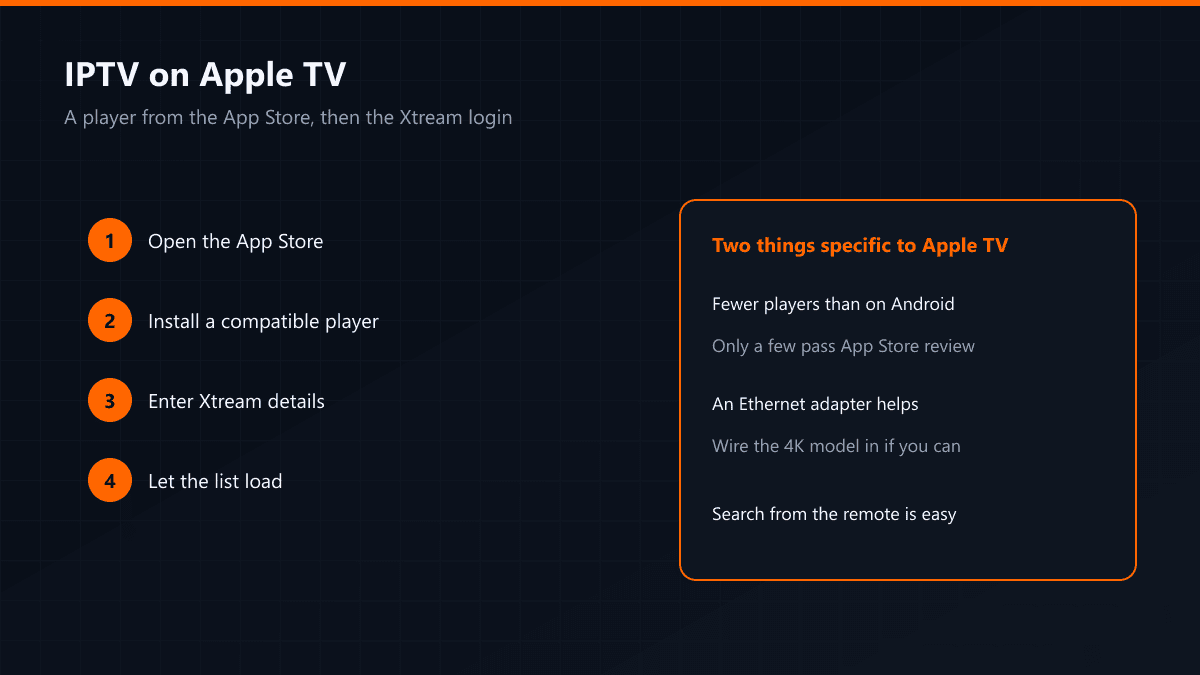
Setup steps
- 01Open the App StoreFrom the Apple TV home screen go into the App Store and open the search section.
- 02Install a compatible playerIPTV Smarters, GSE Smart IPTV and iPlayTV are the common options that run on Apple TV. If you cannot decide, ask your provider — they know which one works best with their server.
- 03Enter the Xtream detailsOpen the app, choose the Xtream Codes login and fill in the server address, username and password. Typing with the remote is tedious; you can use your iPhone's keyboard instead — when Apple TV opens a text field, a notification appears on the phone.
- 04Wait for the listOnce the channel list and the guide have downloaded, open the first channel and test it.
Two things specific to Apple TV
An Ethernet adapter makes a difference
The Apple TV 4K models have an Ethernet port; on models without one, a USB-C adapter does the job. A wired connection shows its worth at kick-off in particular — a stream that stutters on Wi-Fi settles on cable.
The choice of apps is narrow
There is no equivalent of TiviMate on Apple TV. That sounds like a gap but rarely matters in practice: ordinary watching, the guide and the film library are all covered by the apps that exist.
If the channel list arrives but nothing plays, check the app's network permissions first. Apple TV asks some apps for local network access on first launch and, when refused, they fail quietly.