Setting Up IPTV on an LG webOS TV
·5 min read
The only hard part of setting up IPTV on an LG television is where the app comes from. webOS is a closed system: unlike Android TV you cannot sideload a file and install it, so the app is either in the store or it is not.
What the model year changes
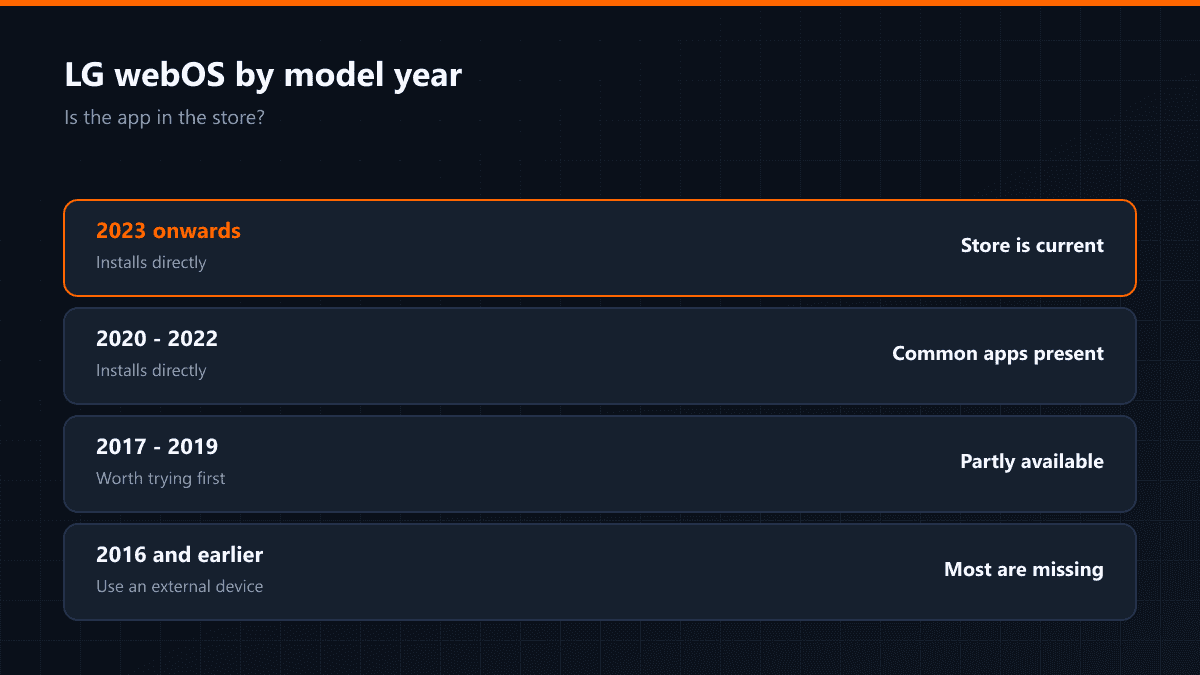
The webOS version follows the model year, and the store catalogue follows the webOS version. On a television from before 2018 even the store itself opens in an older interface, and most current IPTV apps do not appear there. On newer models the situation reverses: the store is full and installation takes a few clicks.
| Model year | webOS | Store | In practice |
|---|---|---|---|
| 2016 and earlier | 3.0 and below | Most apps missing | An external device is better |
| 2017 - 2019 | 4.x | Some apps present | Worth trying first |
| 2020 - 2022 | 5.x - 6.x | Common apps present | Installs directly |
| 2023 onwards | 22 and above | Store is current | Installs directly |
Setup steps
- 01Connect the television to the internetSet up the wired or wireless connection under Settings > Network. Prefer a cable if you have one; webOS wireless performance lags behind that of external devices.
- 02Open the LG Content StoreGo in from the store icon on the home screen and type the app name into the search box. If nothing comes up, check the store's country setting: some apps are only listed in certain countries.
- 03Install the app and open itAfter installation the app is added to the app row on the home screen. On first launch it asks for a list or account details.
- 04Enter your membership detailsType in the address and credentials you were given. Entering a long address with a remote is tedious; if the television has a browser, copying the address from there is quicker.
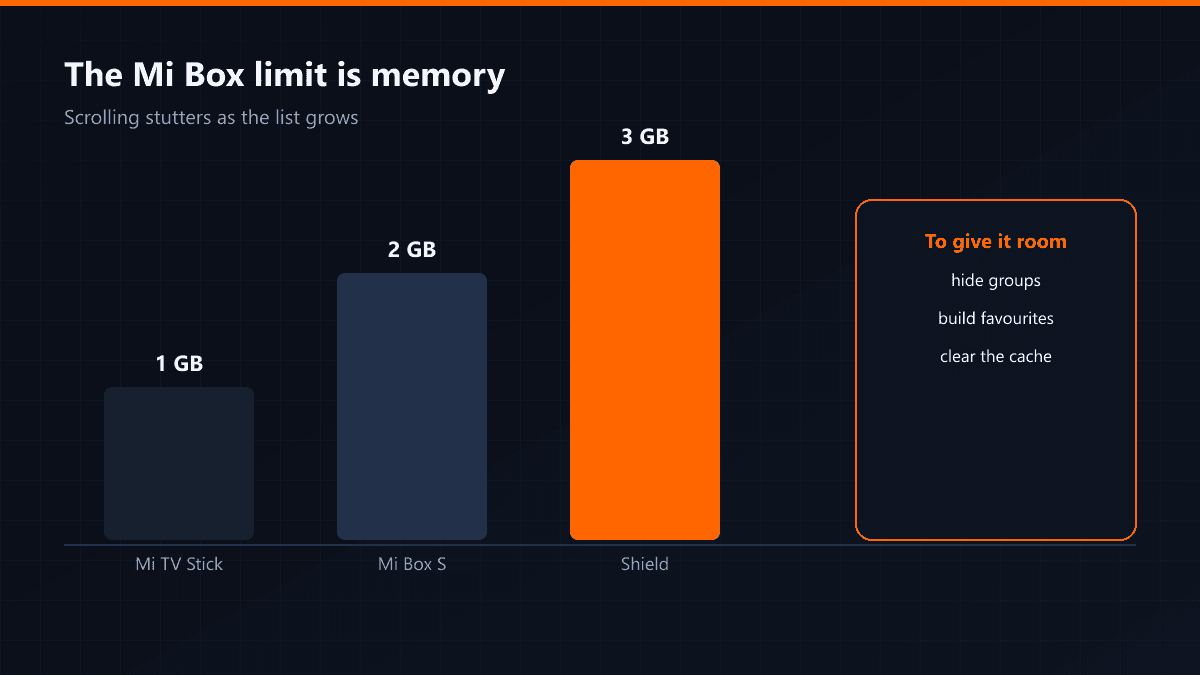
- 05Download the channel listThe first load can take a few minutes. Once the list is there, hide the groups you do not use: on webOS devices a long list slows down menu navigation.
If the app is not in the store
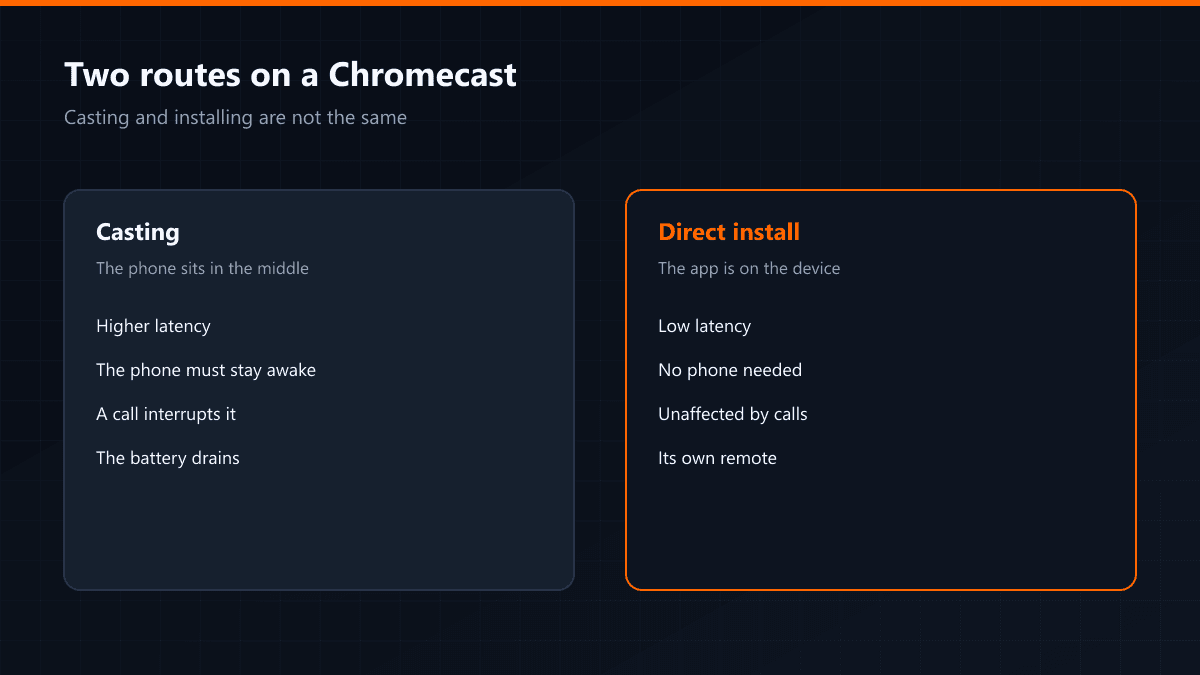
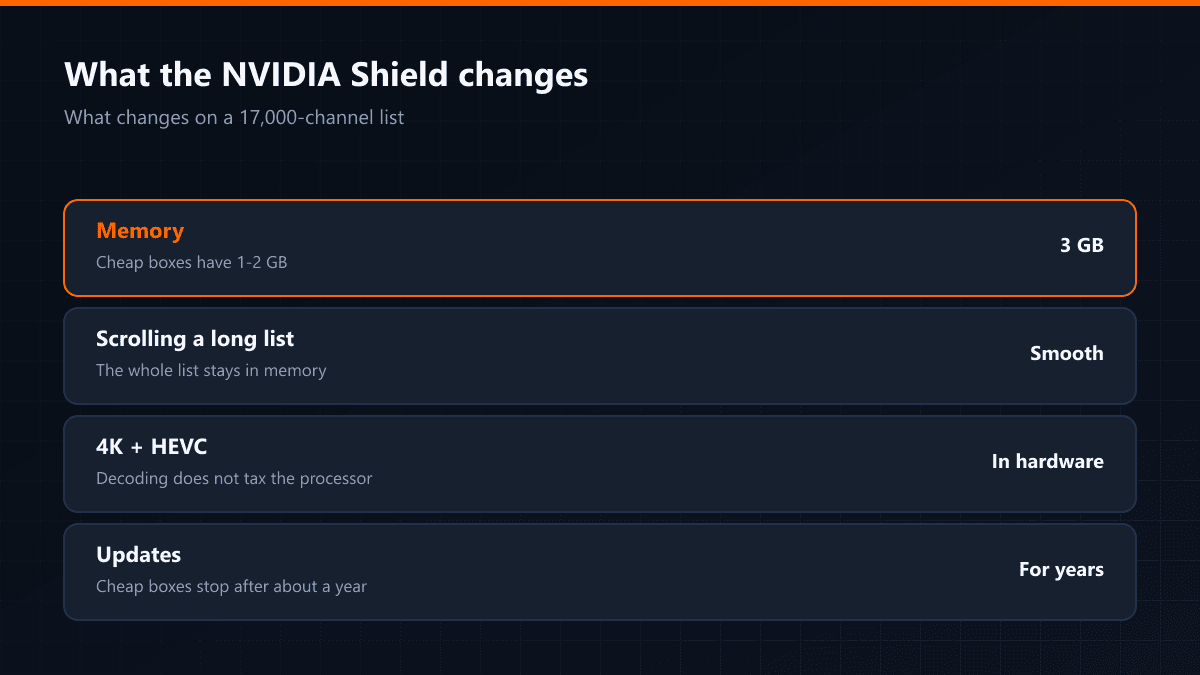
There are two routes then. The first is a web-based player in the television's own browser; it works, but channel switching is slow and guide support is weak. The second, and the sturdier one, is attaching a small external device — a Fire TV Stick or an Android TV box gives the same setup regardless of how old the television is.
What is developer mode for?
LG's developer mode is meant for people building apps: an app installed that way expires at intervals and has to be re-enabled. It is not a practical route for daily use, because you have to repeat the same procedure every few days.
When an app hangs on webOS, switching the television off with the remote is not enough; the device goes into standby and the app stays in memory. Unplugging it and waiting 30 seconds gives you a real restart.