TiviMate Multiview: Four Matches at Once, Done Properly
·7 min read
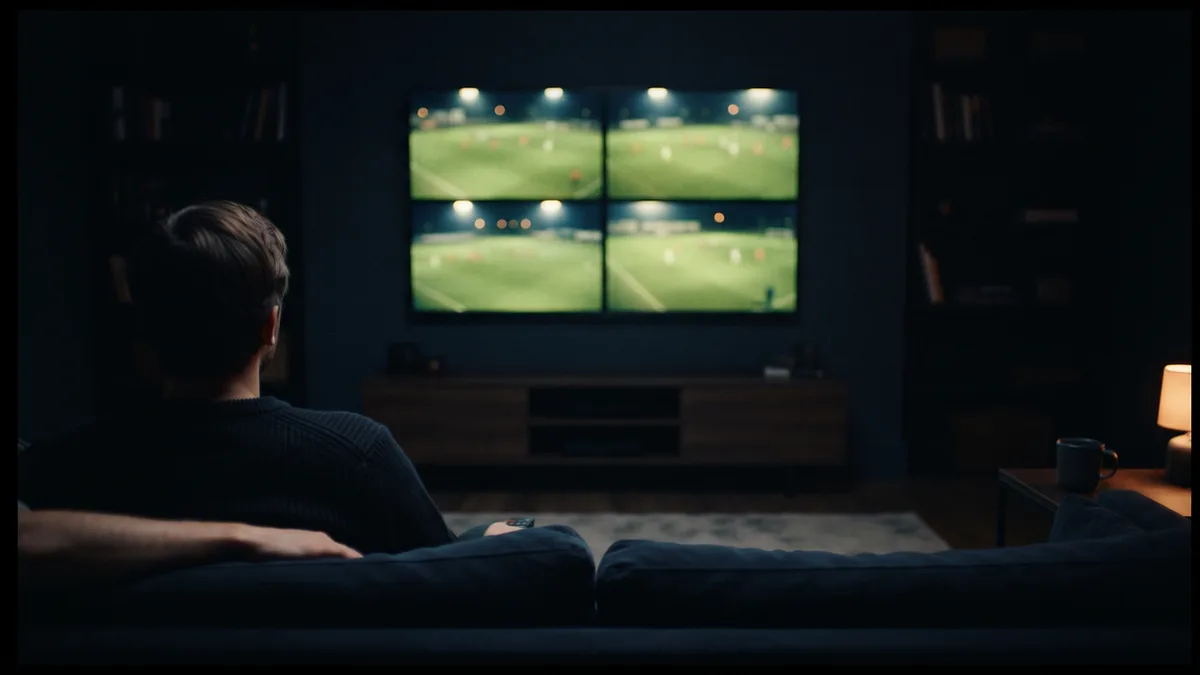
Multiview splits the TV into two or four windows, each playing its own channel. In TiviMate the feature is called Multiview and it comes with Premium. Watching four matches at once is technically possible — but every window is a separate stream, so it needs its own share of bandwidth, its own connection on your IPTV plan and its own video decoder in the box.
How Multiview works
While a channel is playing, open the player menu, choose the multiview option and pick a layout; then assign a channel from the list to each empty window. Sound comes only from the selected window, and moving between windows with the remote moves the sound with you. Select a window and confirm, and that channel goes full screen. Menu labels can change between versions, so look for the option in the menu that opens during playback.
Multiview is not unique to TiviMate; other players have similar features. The sums below apply whichever app you use: four windows are four streams.
The bandwidth sums
Bandwidth needs rise in direct proportion to the number of windows. The table multiplies the single-stream figures from our internet speed guide by the window count and adds 10 Mbit for the rest of the household. These are calculations, not measurements: real usage sits a little above or below depending on each channel's bitrate.
| Layout | All HD (10 Mbit) | All Full HD (20 Mbit) |
|---|---|---|
| Single screen | 10 + 10 = 20 Mbit | 20 + 10 = 30 Mbit |
| Two windows | 2 × 10 + 10 = 30 Mbit | 2 × 20 + 10 = 50 Mbit |
| Four windows | 4 × 10 + 10 = 50 Mbit | 4 × 20 + 10 = 90 Mbit |
The practical upshot: on a 50 Mbit line four Full HD windows do not fit, but four HD windows do. On a small window you cannot see the difference between Full HD and HD anyway, so if a channel has an HD version, pick it for multiview — it eases both the line and the box. The match you are really watching in Full HD, the side windows in HD, is a good compromise. Many UK and European homes are on fibre-to-the-cabinet lines that sit in this 40 to 80 Mbit range, which is exactly where the choice matters.
Your plan's connection limit
This is the point most people miss. To the server, four windows are no different from four separate viewers: each window counts as one simultaneous connection. On a single-screen plan, the moment you open a second window you exceed the limit and one or both windows cut out.
- Four windows need a plan with at least four simultaneous connections.
- Another TV or phone streaming at the same time in the house adds to that count.
- Sending the player to the background without leaving multiview may not close the connections; turn multiview off in the menu when you are done.
Can your box cope?
Every window opens its own session on the device's hardware video decoder. A capable Android TV box handles four HD streams comfortably, while an entry-level streaming stick can struggle on the third or fourth window. The symptom users report most is the last window staying black or throwing a decoder error. A hot device hits that point sooner.
- 01Start with two windowsTry two HD channels first. If nothing stutters, add the third and fourth one at a time; that way you see exactly where the trouble starts.
- 02Use a wired connectionFour streams are four times as sensitive to Wi-Fi dips as one. If the box has an Ethernet port, plug in a cable on match night.
- 03Pick the HD version of each channelWhere a channel comes in several qualities, use the lower one in the side windows. It cuts both bandwidth and decoder load.
- 04Restart the boxA box that has been on for hours may have filled its memory. A restart before a multiview evening often fixes the last window that will not open.
If multiview misbehaves, open the same channels one at a time in a single window. If each one plays fine on its own, the stream is not the problem — the line, the connection limit or the device's capacity is.
Screen size is part of the sum
On a screen split into four, each window's diagonal is half the TV's diagonal. On a 55-inch TV each of the four windows looks like a 27.5-inch screen; on a 43-inch TV, 21.5 inches. From a sofa three metres away, the scoreboard and shirt numbers are hard to read on a 21.5-inch window. On a smaller TV, two windows are often more useful than four.
When multiview is worth it
- The last rounds of a league season, when title and relegation matches kick off at the same time in most leagues.
- European nights with several matches starting at the same time.
- Keeping a news channel or another match's score in the corner while you watch.
- Following a second feed alongside the main broadcast during a Formula 1 race.
Those evenings are also when servers are busiest. Opening and arranging the four windows ten minutes before kick-off goes more smoothly than trying to open four channels at once on the whistle.